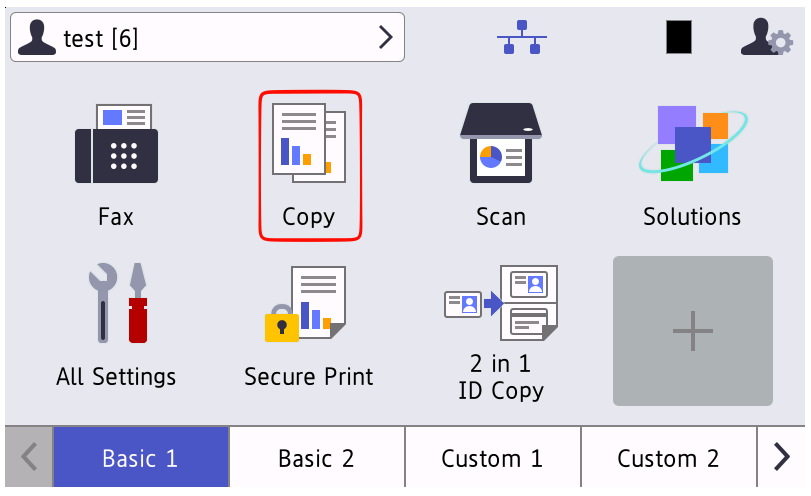
Brother cloud terminal is currently in closed beta and requires special pre-release firmware on the Brother device.
Logging in and out
Logging in
-
The authentication method depends on your administrator's terminal configuration. Log in using PIN (Short ID), card, or username/password. Follow the on-screen instructions to select your method and proceed.
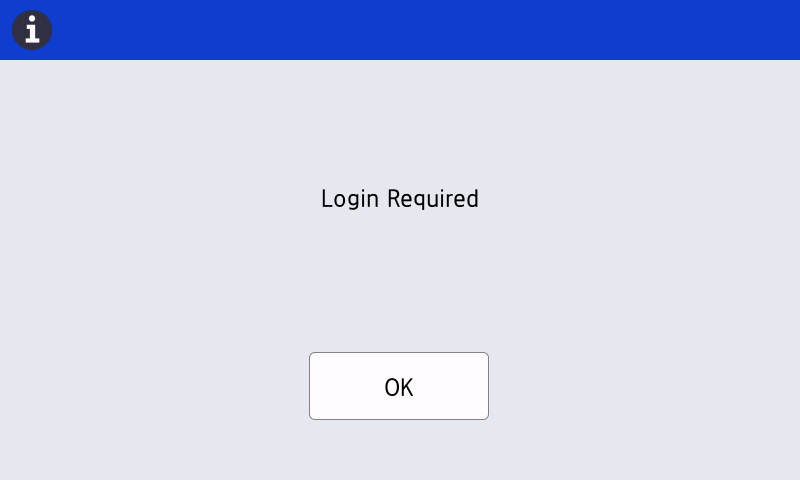
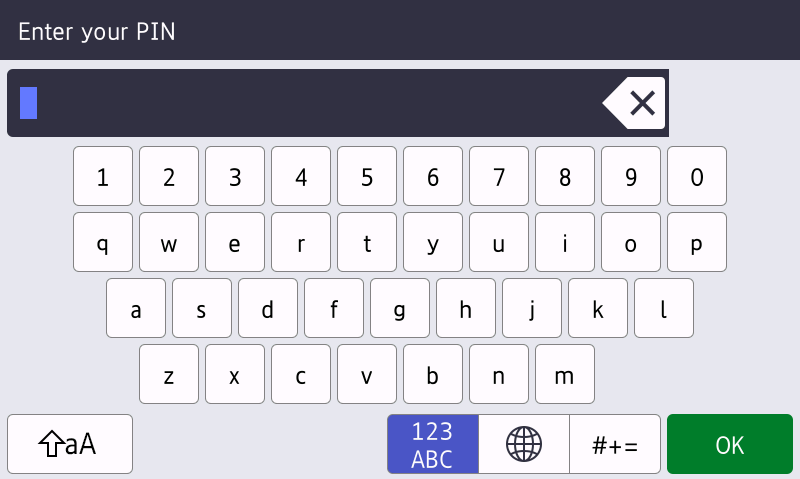
-
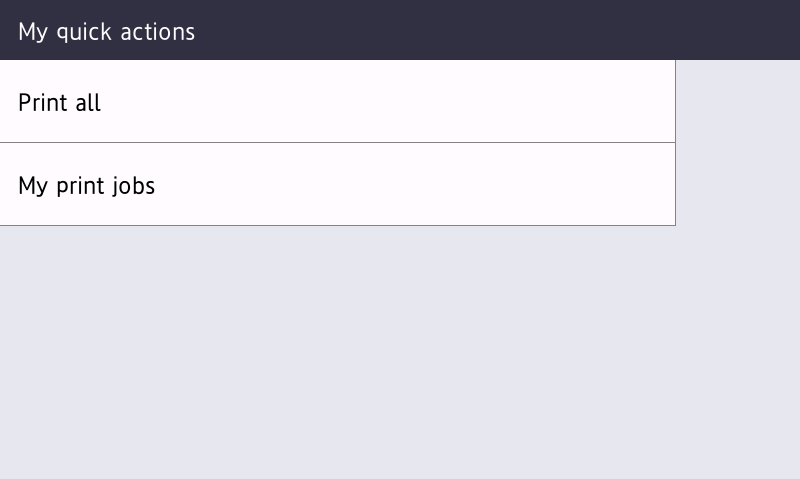
After logging in, you will see the My quick actions screen to select your desired action
Logging out
-
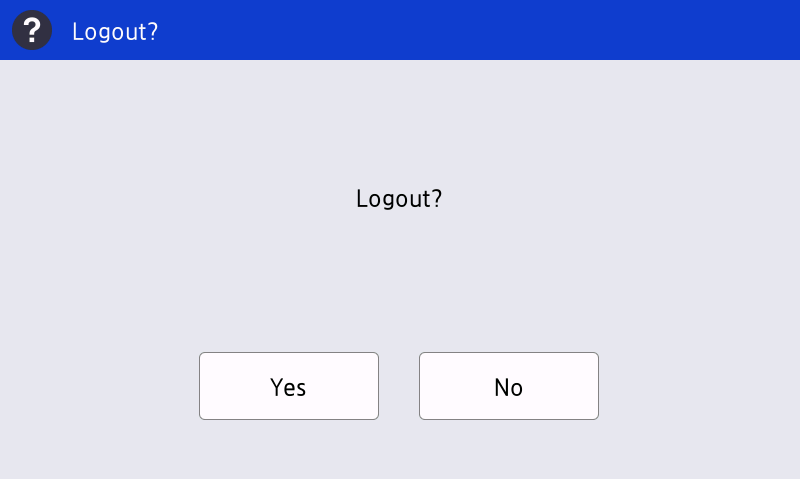
To log out, open the home menu, tap your user name, and confirm the log out prompt.
My quick actions applications
-
My quick actions application allows you to access frequently used functions, such as print all jobs. The quick action buttons are displayed according to your permissions.
Printing and managing jobs
-
After logging in, you can choose Print all quick action to print all waiting jobs.
-
To release specific print jobs, tap My print jobs.
-
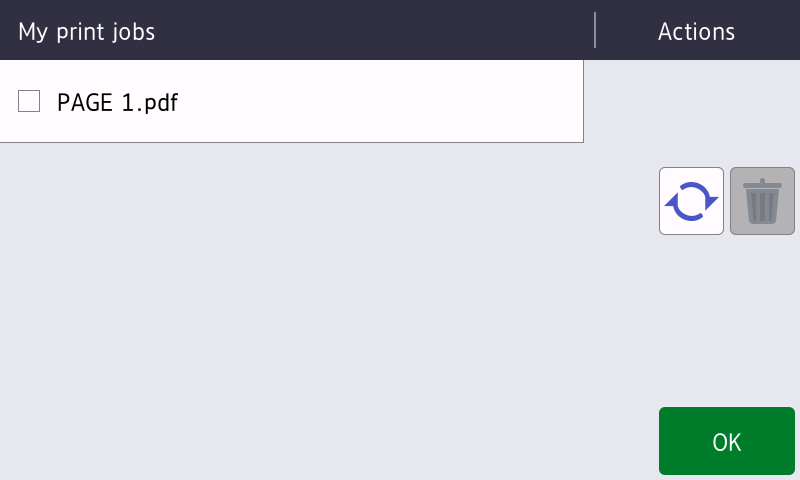
The My print jobs screen appears. Select the jobs to print and tap OK.
-
To delete jobs, select them and tap the trash icon.
-
Refresh the job list using the blue refresh icon next to the trash icon.
-
Copying
-
If you are logged to the device, tap the home icon to access a home menu
-
On the home screen, tap Copy application
-
This will take you to the native copy application of the device.